

Use Context in Office
Once your admin has deployed the add-in, Context works beside the document you have open in Excel, Word or PowerPoint.
Where it appears
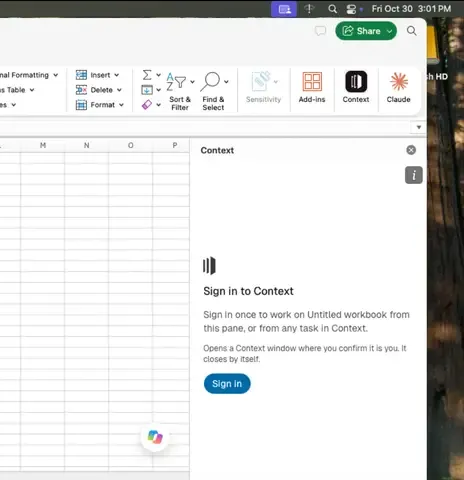
Context is on the Home tab in Excel, Word and PowerPoint. Select Context to open it beside the document.
If you don’t see it, ask your admin: the add-in can take a while to reach everyone (Roll out the Office add-in).
Sign in the first time
The first click asks you to sign in to Context once. Select Sign in: it opens a Context window where you confirm it is you, and the window closes by itself.
When Context asks before an edit
Whether Context asks before it changes the document depends on the agent’s permissions preset (Decide what agents can do):
| Preset | Edits to the open document |
|---|---|
| Full access (the preset new agents start on) | Made without asking |
| Ask for apps | Made without asking |
| Ask for changes | Context asks first |
| Read only | Not allowed |
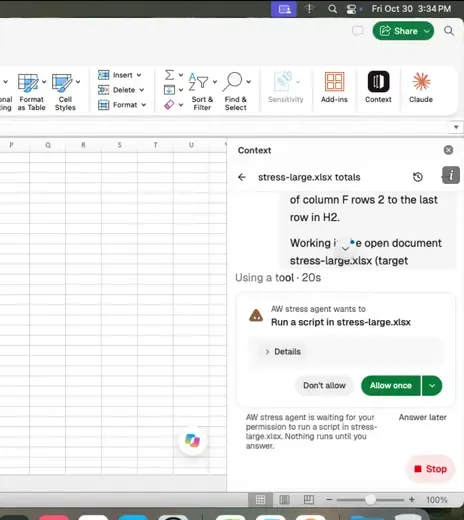
When Context asks, the pane shows what the agent wants to do (for example, run a script in the open workbook) and waits. Choose Allow once, Don’t allow, or, from the menu beside Allow once, Allow all changes to this document until this task is done. Nothing runs until you answer.
To have Context ask before every edit, set the agent to Ask for changes.
What Context can reach
The add-in can only read and write the open document: the workbook, document or presentation the pane sits beside.