

Box
Connect Box so agents can search and read your Box files and folders, and use Box AI on them. A Box admin creates an app once, and then each person signs in with their own Box account.
Box can’t be added just by pasting its address, because Box needs an app with a client secret. Follow the steps below.
What Context provides
- One connection per person. Agents act as that person and see only what they can in Box.
- The Box sign-in stays on Context’s servers. Agents never hold anyone’s Box password or token.
- The tool list comes from Box, and you can block any tool you don’t want agents to use.
What you will need
- A Box admin who can create apps in the Box Admin Console.
- To be an admin in Context.
- For the Box AI tools, a Box plan that includes Box AI. Without it those tools fail with Box’s own message.
1. Create the app in Box
In the Box Admin Console, open the Box MCP server integration (or create your own Box Platform app) and:
- Generate a client ID and client secret.
- Set the redirect address to exactly your Context address followed by
/api/auth/connector-oauth/callback. The install page shows it with a Copy button. - Turn on the Content Actions scope, plus Manage AI if you want the Box AI tools. Scopes are set in Box only; leave Context’s Scopes empty.
2. Add the connector
Start as in Set up the connector, with Box’s address in Server address:
Code
Under Sign-in, pick OAuth app, then Custom OAuth 2.0, and fill in:
| Field | Value |
|---|---|
| Authorize URL | https://account.box.com/api/oauth2/authorize |
| Token URL | https://api.box.com/oauth2/token |
| Identity source | userinfo endpoint |
| Userinfo URL | https://api.box.com/2.0/users/me |
| Client ID and Client secret | From step 1 |
| Subject claim path (under Advanced) | id |
Under Access, let each person connect their own account. Click Install connector.
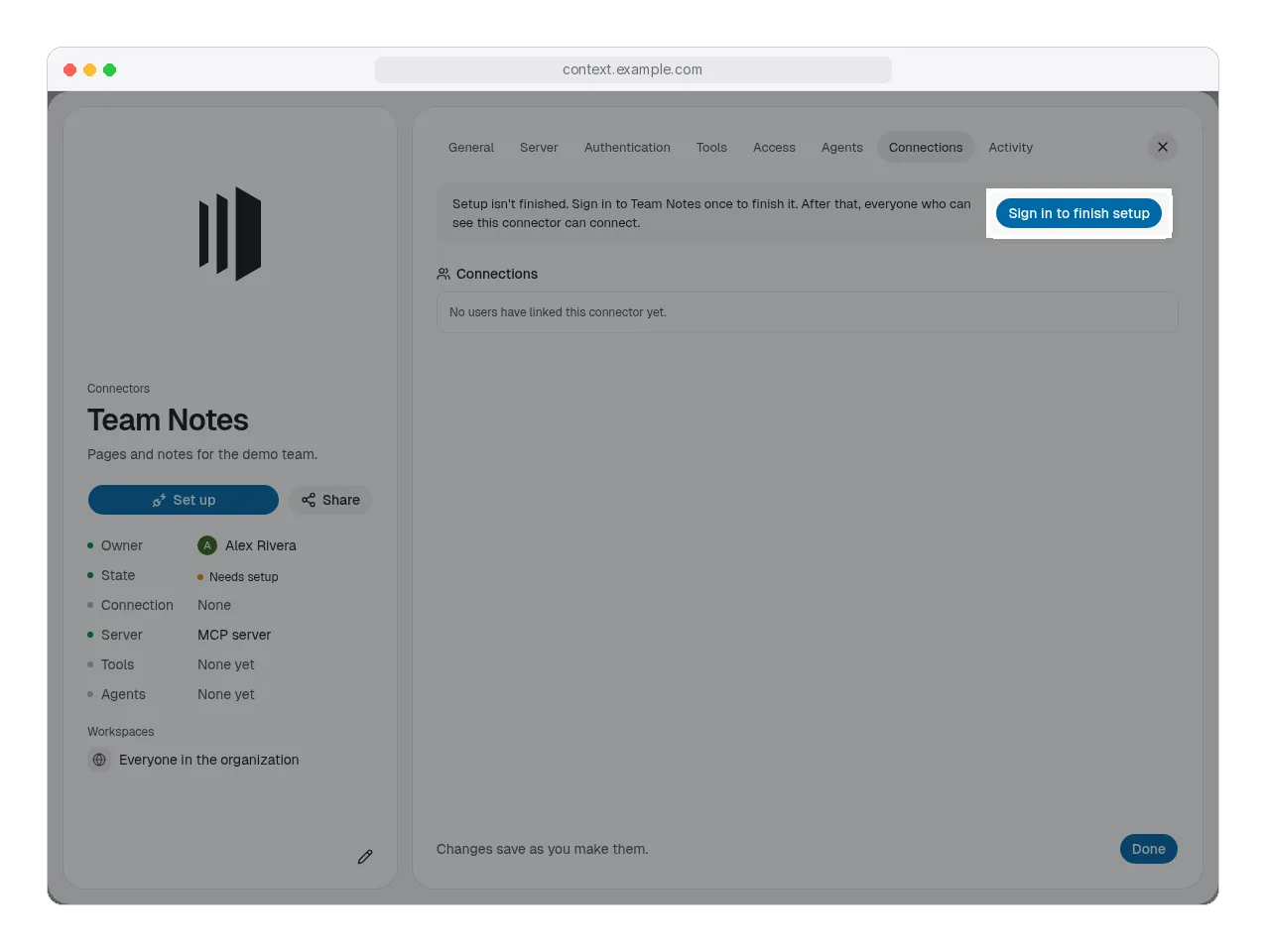
3. Sign in to finish setup
Click Sign in to Box and approve access. This checks the whole setup, connects your own account and makes the connector usable by everyone who can see it. If something is wrong, the checklist shows which part (often the redirect address or the secret).
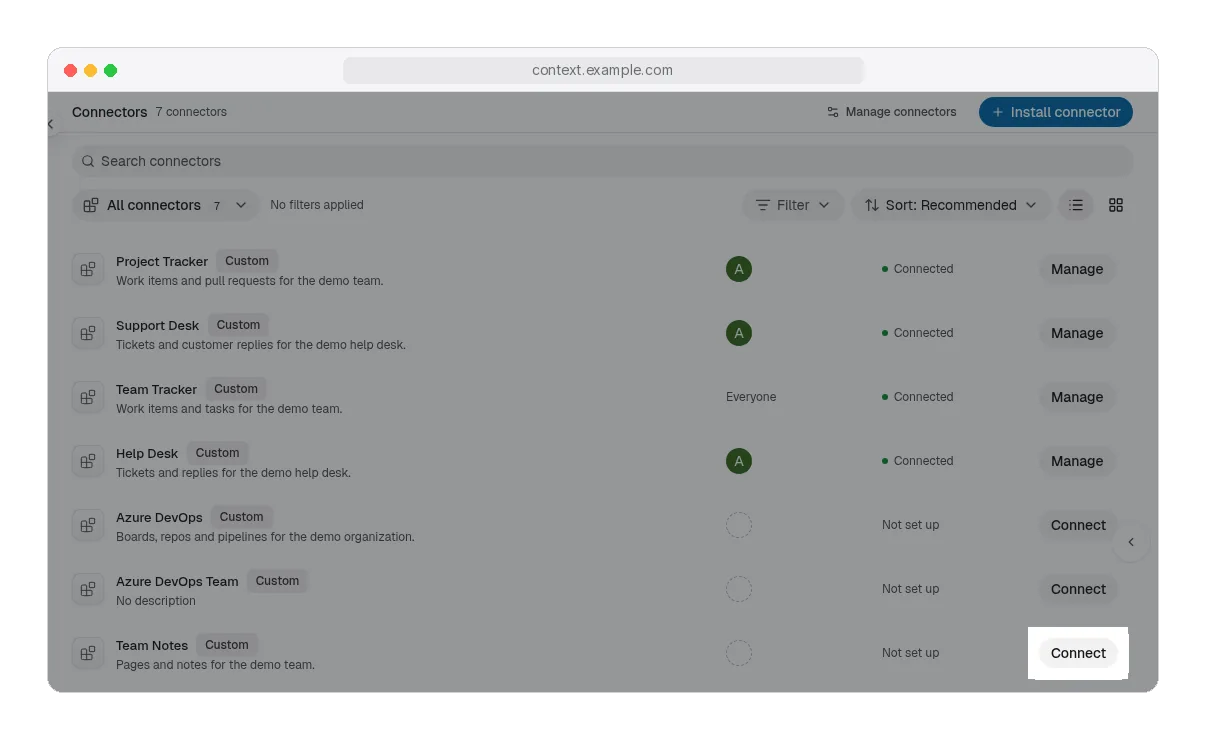
4. Everyone connects
Each person clicks Connect on the Box connector and signs in to Box, or clicks Connect Box the first time an agent asks for it in chat.
Keep Box read-only (optional)
All Box tools are allowed until you block them. To keep Box read-only, block the tools that upload, create, change, move, copy or delete files and folders, plus Doc Gen and sharing. Box adds new tools often, and a new tool is allowed until you block it, so check the Tools tab after Box releases.
Troubleshooting
| Problem | Fix |
|---|---|
Box says invalid_scope | Set Identity source to userinfo endpoint and leave Scopes empty. |
| “userinfo response had no subject” | Set Subject claim path to id under Advanced. |
| Sign-in says the request expired | Click Sign in to finish again; each sign-in link works once. |
| An agent started earlier doesn’t see Box | Start a new task. Agents pick up connectors when they start. |
| Your Context servers can’t reach Box | Your operator allows Box’s addresses; see the Box operator reference. |