

Connect an MCP server by URL
Some services, such as Notion, Linear and Asana, can be connected just by pasting their MCP server address. You don’t create an app or copy any keys: Context sets up the sign-in for you, and then each person connects their own account. Notion, Linear and Asana each have a short setup page; this page covers any other MCP server.
To check that you have this, click Install connector and paste the server’s address. If the
form then says <Service> signs people in itself, you do. If not, see
Known limits.
Which services work this way
These worked when this page was written. Services change, so the result of Install connector is what counts.
| Service | Address | Works by URL? |
|---|---|---|
| Notion | https://mcp.notion.com/mcp | Yes. See Notion. |
| Linear | https://mcp.linear.app/mcp | Yes. See Linear. |
| Asana | https://mcp.asana.com/mcp | Yes. See Asana. |
| Atlassian | https://mcp.atlassian.com/v1/mcp | No. It doesn’t publish its sign-in. |
| Box | https://mcp.box.com | No. It needs a secret; see Box. |
| Azure DevOps | https://mcp.dev.azure.com/<organization> | No. See Azure DevOps. |
Set up the connector (admin)
-
Open Install connector
In Settings → Admin → Connectors, or in the Connectors tile, click Install connector.
-
Paste the address
Paste the address into Server address and click Install connector, for example
https://mcp.notion.com/mcp. -
Keep the sign-in
Context checks the address and sets up the sign-in itself: Sign-in says “
<Service>signs people in itself. You’ll sign in next.”, and there is nothing else to fill in.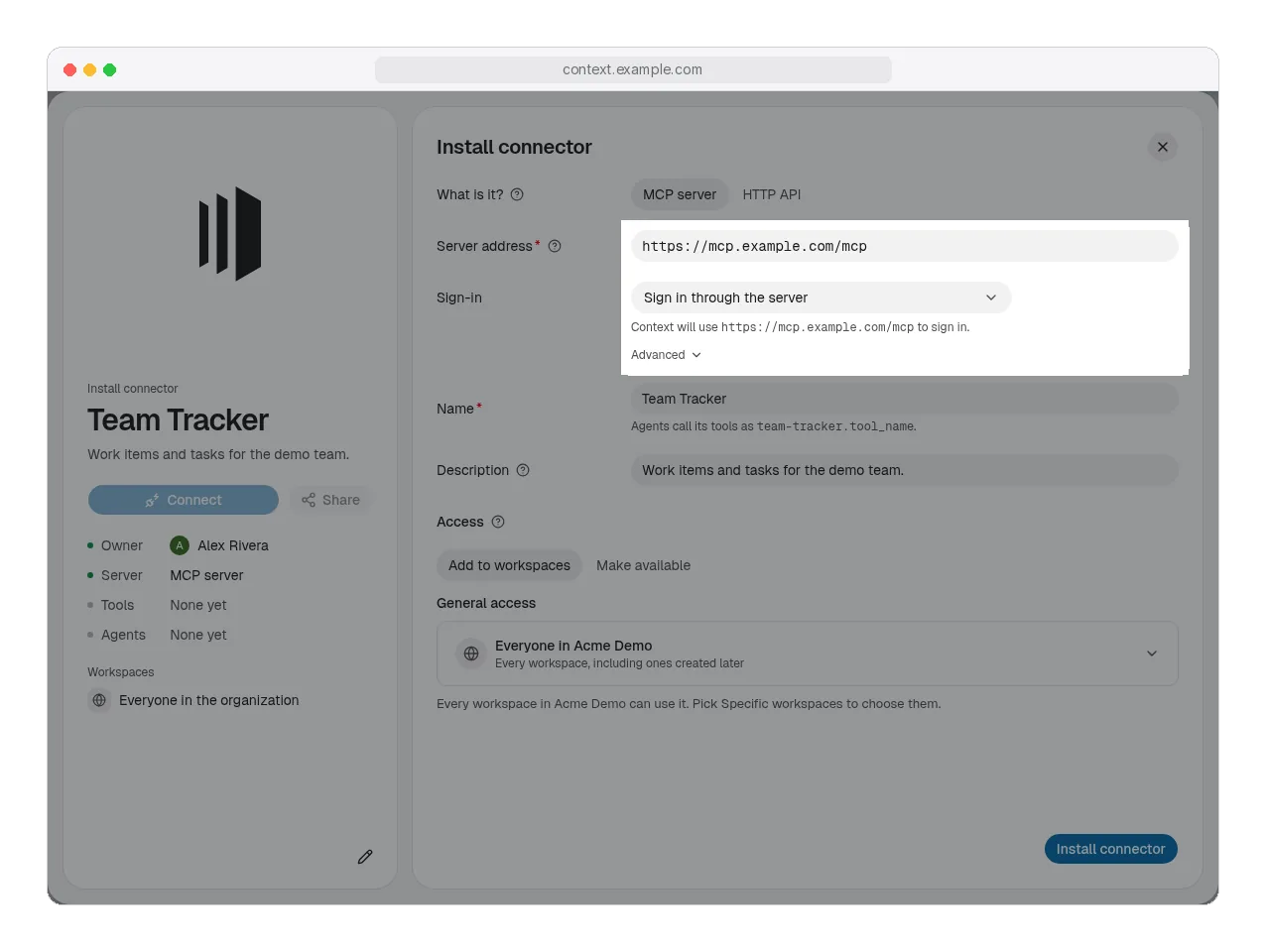
-
Name it and install
The Name fills in from the address. Click Install and sign in. It installs for everyone in your organization; to narrow that, open the connector afterwards and click Share.
-
Sign in to finish
Click Sign in to
<name>and approve access in the service’s window. This finishes setup and connects your own account. Until then the connector says Needs setup and nobody else can connect.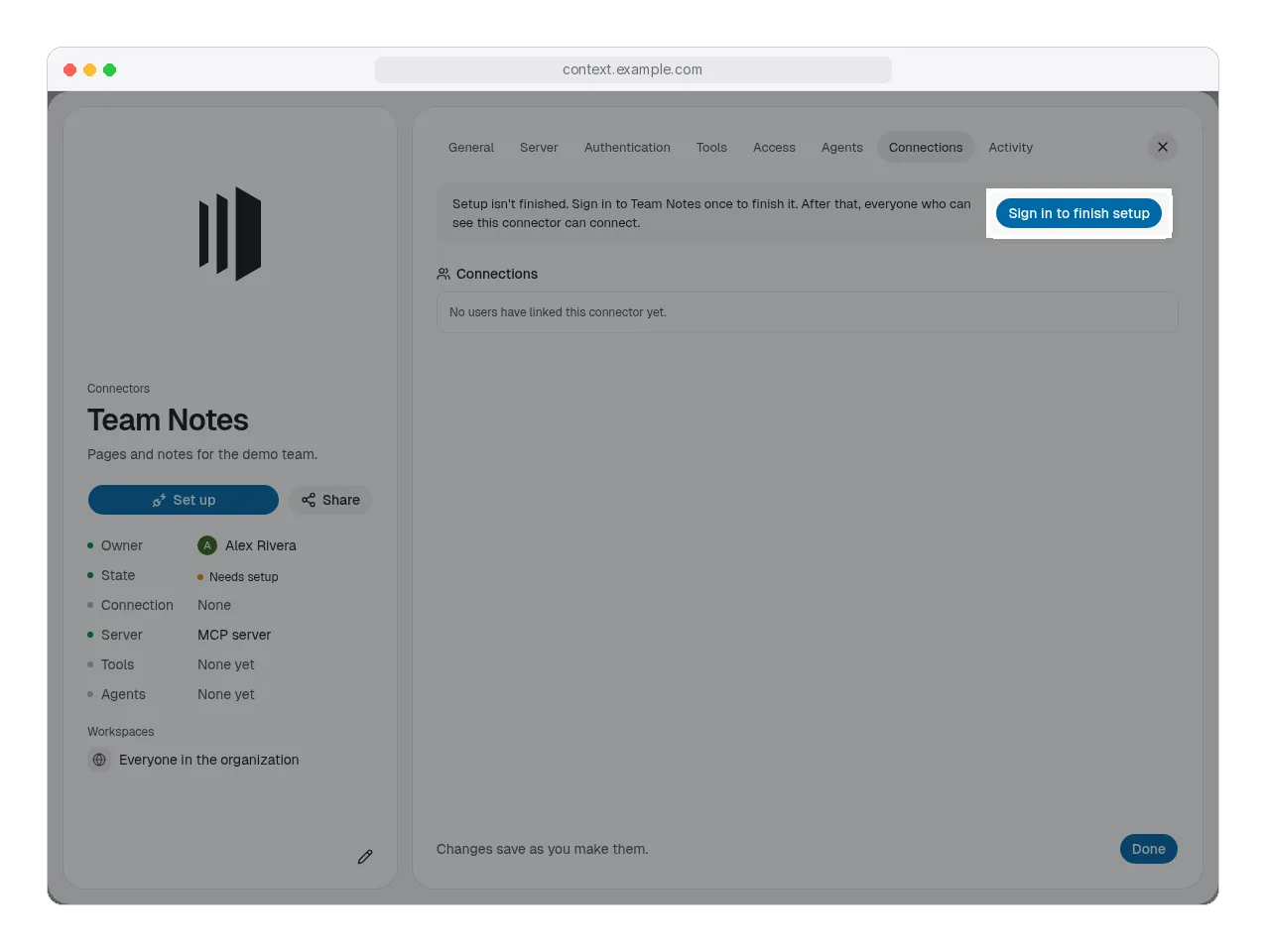
-
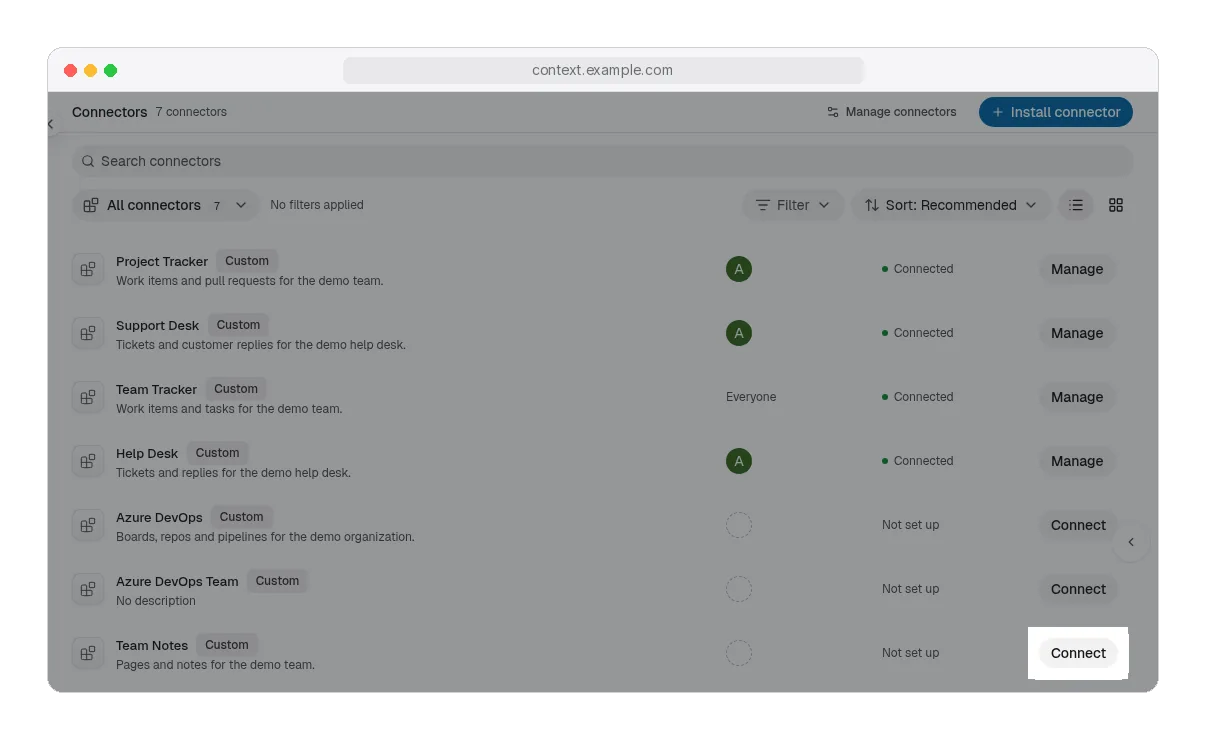
Everyone else connects
Each person clicks Connect on the connector and signs in. From then on, agents act as that person, with exactly what they can see and do in the service.
If setup fails, the page shows the reason followed by “Nothing was installed.”, and keeps what you typed. See Troubleshooting below.
Staying connected
People stay signed in while they use the connector, and each service decides when they have to
sign in again. When that happens, the chat shows <name> needs to be reconnected and the
person clicks Reconnect.
Changing the address
Editing the name, access or tools doesn’t touch the sign-in. Changing the Server address sets up the sign-in again, so the connector goes back to Needs setup until someone signs in to finish, and each person reconnects.
Before you start
- You need to be an admin, or the creator of a Just me connector.
- The address must start with
https://. - On a self-hosted install with locked-down internet access, allow the service’s host (for
Notion,
mcp.notion.com). Private addresses need an operator setting; see Reach services on your private network.
Limits
- Context can’t yet limit which account or workspace in the service people connect. Use the service’s own controls if it has them.
- Fixed headers (an API version, a tool filter) are set in Edit as YAML. See Fixed headers.
Troubleshooting
These messages appear after Install connector, or when you change the Server address of an existing connector.
| Message | Fix |
|---|---|
| “Server address is required for an MCP server” or “…needs a full https server address.” | Paste the full address, starting with https://. |
| “This URL doesn’t publish MCP OAuth metadata…” | The address isn’t the service’s MCP server (a website page, or a missing /mcp). Copy the exact address from the service’s docs. If it is right, the service can’t be connected by URL. |
| “This server doesn’t support PKCE (S256)…” or a message that the server needs a client ID made by its admin | The service can’t be connected by URL. For Microsoft services, use the Microsoft Entra sign-in. |
| “The server names an authorization server that publishes no metadata.” | The service can’t be connected by URL. Use an OAuth app instead. |
| “The server refused to register Context as a client…” | Try again later. If it keeps failing, check the service’s status page or whether your plan allows outside apps. |
| “Couldn’t reach that MCP server, or its address isn’t allowed.” | Check that your Context servers can reach the address (see Before you start). |
| “The MCP server is connected, but its sign-in addresses were not saved…” | Open Edit config → Authentication and click Done. |
| “The server’s … is not https”, “…is not JSON” or “…is too large” | The service’s setup is broken. Contact the service. |
For errors from the service’s own sign-in page, see Troubleshooting.
If the service needs a client ID
A few services only accept apps registered with them in advance. Register a public app with the
service using the Redirect URI shown under Advanced (your Context address followed by
/api/auth/connector-oauth/callback), and paste its Client ID there.